Blog



git clone https://huggingface.co/AXERA-TECH/immich
File Description:
m5stack@raspberrypi:~/rsp/immich $ ls -lh
total 421M
drwxrwxr-x 2 m5stack m5stack 4.0K Oct 10 09:12 asset
-rw-rw-r-- 1 m5stack m5stack 421M Oct 10 09:20 ax-immich-server-aarch64.tar.gz
-rw-rw-r-- 1 m5stack m5stack    0 Oct 10 09:12 config.json
-rw-rw-r-- 1 m5stack m5stack 7.6K Oct 10 09:12 docker-deploy.zip
-rw-rw-r-- 1 m5stack m5stack 104K Oct 10 09:12 immich_ml-1.129.0-py3-none-any.whl
-rw-rw-r-- 1 m5stack m5stack 9.4K Oct 10 09:12 README.md
-rw-rw-r-- 1 m5stack m5stack  177 Oct 10 09:12 requirements.txt
unzip docker-deploy.zip
cp example.env .env
4. Start the container
docker compose -f docker-compose.yml -f docker-compose.override.yml up -d
If started successfully, the information is as follows:
m5stack@raspberrypi:~/rsp/immich $ docker compose -f docker-compose.yml -f docker-compose.override.yml up -d
WARN[0000] /home/m5stack/rsp/immich/docker-compose.override.yml: the attribute `version` is obsolete, it will be ignored, please remove it to avoid potential confusion
[+] Running 3/3
 ✔ Container immich_postgres  Started                                      1.0s
 ✔ Container immich_redis     Started                                      0.9s
 ✔ Container immich_server    Started                                      0.9s
(mich) m5stack@raspberrypi:~/rsp/immich $ python -m immich_ml
[10/10/25 09:50:12] INFO     Starting gunicorn 23.0.0
[10/10/25 09:50:12] INFO     Listening at: http://[::]:3003 (8698)
[10/10/25 09:50:12] INFO     Using worker: immich_ml.config.CustomUvicornWorker
[10/10/25 09:50:12] INFO     Booting worker with pid: 8699
2025-10-10 09:50:13.589360675 [W:onnxruntime:Default, device_discovery.cc:164 DiscoverDevicesForPlatform] GPU device discovery failed: device_discovery.cc:89 ReadFileContents Failed to open file: "/sys/class/drm/card1/device/vendor"
[INFO] Available providers:  ['AXCLRTExecutionProvider']
/home/m5stack/rsp/immich/mich/lib/python3.11/site-packages/immich_ml/models/clip/cn_vocab.txt
[10/10/25 09:50:16] INFO     Started server process [8699]
[10/10/25 09:50:16] INFO     Waiting for application startup.
[10/10/25 09:50:16] INFO     Created in-memory cache with unloading after 300s
                             of inactivity.
[10/10/25 09:50:16] INFO     Initialized request thread pool with 4 threads.
[10/10/25 09:50:16] INFO     Application startup complete.
In your browser, enter the Raspberry Pi IP address and port 3003, for example: 192.168.20.27:3003
Note: The first visit requires registering an administrator account; the account and password are saved locally.

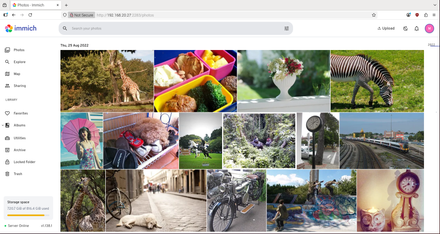
Once configured, you can upload images.

The first time, you need to configure the machine learning server. Refer to the diagram below to enter the configuration.

Set the URL to the Raspberry Pi IP address and port 3003, e.g., 192.168.20.27:3003.
If using Chinese search for the CLIP model, set it to ViT-L-14-336-CN__axera; for English search, set it to ViT-L-14-336__axera.

After setup, save the configuration.

The first time, you need to manually go to the Jobs tab and trigger SMART SEARCH.

Enter the description of the image in the search bar to retrieve relevant images.

Through this hands-on project, we’ve not only built a powerful smart photo album platform, but also experienced the exceptional performance of the M5Stack LLM‑8850 Card in edge AI computing. Whether setting up a private photo album on your Raspberry Pi or deploying intelligent image processing in security scenarios, the M5Stack LLM‑8850 Card delivers efficient, stable computing power you can rely on.
It brings AI closer to where your data resides, enabling faster, more secure processing and turning your ideas into reality. If you’re looking for a solution for on-device AI inference, give M5Stack LLM‑8850 Card a try — it might just become the core engine of your next project.
LLM‑8850 Card in Action: Creating an AI‑Powered Photo Management Platform with Immich


l Prerequisites
l Mounting and configuring the LoRa Gateway
l LoRa node configuration
l Check the communication
l Sending information
l Customize your Gateway
l Acknowledgments
What is LoRa and how does it work?
LoRa (an acronym for "Long Range") is a radio frequency communication protocol that enables long-distance data transmission (up to 10 km in open fields) with very low power consumption. Therefore, it offers two major advantages:
- It has a much greater range than the protocols we commonly use (WiFi, Bluetooth, Zigbee, etc.). This makes it the ideal choice for remote sensors (storage rooms, mailboxes, large gardens, etc.).
- It doesn't rely on the telephone or electrical network to transmit information, so different LoRa devices can communicate even during a power outage.
However, it also has its limitations, as its data transfer speed is slow. In practice, this means it's perfect for sending simple data (commands to our devices, numbers, or text strings), but it's not a suitable protocol for transmitting photos or videos.
Additionally, you should consider the frequency LoRa uses in your geographic area. For example, in Europe it's 868 MHz, while in the US and most of Latin America it's 915 MHz.
Prerequisites
To integrate LoRa into Home Assistant, you will need the following components:
- A LoRa gateway that receives information from the various nodes and transmits it to Home Assistant. In this case, we're going to create a gateway with the M5Stack Core S3 SE (yes, the same one we already used to Activate Assist ), combined with the LoRa868 modules and an external battery (this is optional).
- A LoRa node that collects and sends information (e.g., a connected sensor). In this case, we're going to use a board with the integrated SX1276 chip (which would also be a valid device to act as a LoRa gateway).
- A USB cable to power the DATA board ( with a charging cable, you will not be able to install the software).
- Having installed ESPHome in Home Assistant.
|
|
|
|
Mounting and configuring the LoRa Gateway
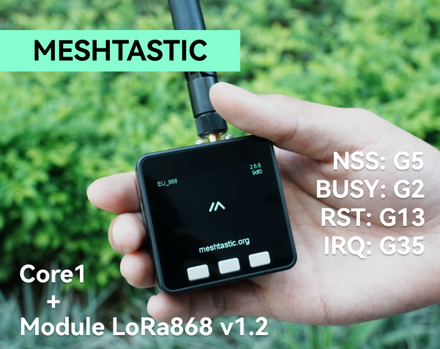
We are going to be using the M5Stack Core S3 SE along with the LoRa868 V1.1 module (now the LoRa868 v1.2 module is available). This is a modular device that's very easy to expand by simply assembling the components.

Something important to keep in mind is that the LoRa module has some small switches on the back ('DIP switches') that modify the pin assignment, and logically, it must match what we indicate in the ESPHome code.
To do this, make sure the switches are in the following position (2, 6 and 7 on and the rest off).

From here, the process will be similar for any compatible motherboard (adapting the steps and connection diagram to the specifications of your device). The steps we followed are as follows:
1. In Home Assistant, go to your ESPHome plugin , tap “New device” and “Continue.”
2. Give your device a name (for example, “LoRa Gateway” ) and click “Next”.
3. Select “ESP32-S3” as the device type . You'll notice that a new block has been created for your device in the background.
4. Click “Skip” and click “Edit” above your device block.
5. Add the following lines to the end of your code (which come directly from the ESPHome SX127x component, adapted to our device).
captive_portal:

spi:
  clk_pin: GPIO36
  mosi_pin: GPIO37
  miso_pin: GPIO35

sx127x:
  cs_pin: GPIO6
  rst_pin: GPIO7
  dio0_pin: GPIO10
  pa_pin: BOOST
  pa_power: 14
  bandwidth: 125_0kHz
  crc_enable: true
  frequency: 868920000
  modulation: LORA
  rx_start: true
  sync_value: 0x12
  spreading_factor: 7
  coding_rate: CR_4_5
  preamble_size: 8
  on_packet:
    then:
      - lambda: |-
          ESP_LOGD("lambda", "packet %s", format_hex(x).c_str());
          ESP_LOGD("lambda", "rssi %.2f", rssi);
          ESP_LOGD("lambda", "snr %.2f", snr);

button:
  - platform: template
    name: "Transmit Packet"
    on_press:
      then:
        - sx127x.send_packet:
            data: [0xC5, 0x51, 0x78, 0x82, 0xB7, 0xF9, 0x9C, 0x5C]
6. Click “Save” and “Install.” Select “Manual download” and wait for the code to compile.
7. When finished, select the “Modern format” option to download the corresponding '.bin' file.
8. Connect the M5Stack Core S3 SE to your computer using the USB-C data cable via the port on the side.
9. Now go to the ESPHome page and click "Connect." In the pop-up window, select your board and click "Connect."
10. Now click on “Install” and select the '.bin' file obtained in step 7. Again, click on “Install”.
11. Return to Home Assistant and go to Settings > Devices & Services. Your device should have been discovered and appear at the top, waiting for you to press the "Configure" button. Otherwise, click the "Add integration" button, search for "ESPHome," and enter your board's IP address in the "Host" field. As always, we recommend assigning a static IP address to your router to avoid future issues if it changes.
LoRa node configuration
Now that we have our LoRa gateway, let's configure a node to send information to it. To do this, we'll follow steps very similar to those in the previous section:
1. In Home Assistant, go to your ESPHome plugin , tap “New device” and “Continue.”
2. Give your device a name (for example, “LoRa Node” ) and click “Next”.
3. Select “ESP32” as the device type . You'll notice a new block has been created for your device in the background.
4. Click “Skip” and click “Edit” above your device block.
5. Add the following lines to the end of your code (which in this case match the example of the SX127x component of ESPHome).
captive_portal:

spi:
  clk_pin: GPIO5
  mosi_pin: GPIO27
  miso_pin: GPIO19

# Example configuration entry
sx127x:
  cs_pin: GPIO18
  rst_pin: GPIO23
  dio0_pin: GPIO26
  pa_pin: BOOST
  pa_power: 14
  bandwidth: 125_0kHz
  crc_enable: true
  frequency: 868920000
  modulation: LORA
  rx_start: true
  sync_value: 0x12
  spreading_factor: 7
  coding_rate: CR_4_5
  preamble_size: 8
  on_packet:
    then:
      - lambda: |-
          ESP_LOGD("lambda", "packet %s", format_hex(x).c_str());
          ESP_LOGD("lambda", "rssi %.2f", rssi);
          ESP_LOGD("lambda", "snr %.2f", snr);

button:
  - platform: template
    name: "Transmit Packet"
    on_press:
      then:
        - sx127x.send_packet:
            data: [0xC5, 0x51, 0x78, 0x82, 0xB7, 0xF9, 0x9C, 0x5C]
6. Note that the pin assignment is different (because we're using a different device than the one we used for the Gateway), but the rest of the configuration is exactly the same as in the previous section. This is important so they can communicate with each other.
7. Click “Save” and “Install.” Select “Manual download” and wait for the code to compile.
8. When finished, select the “Modern format” option to download the corresponding '.bin' file.
9. Connect the board to your computer using the Micro USB data cable through the port on the side.
10. Now go to the ESPHome page and click "Connect." In the pop-up window, select your board and click "Connect."
11. Now click on “Install” and select the '.bin' file obtained in step 8. Again, click on “Install”.
12. Return to Home Assistant and go to Settings > Devices & Services . Your device should have been discovered and appear at the top, waiting for you to press the "Configure" button . Otherwise, click the "Add integration" button, search for "ESPHome," and enter your board's IP address in the "Host" field. As always, we recommend assigning a static IP address to your router to avoid future issues if it changes.
Check the communication
Let's do a little test to check that both devices are communicating correctly (the Gateway and the node) .
1. Make sure both devices are turned on and are online in Home Assistant and ESPHome.
2. From Home Assistant, go to Settings > Devices & Services > ESPHome and access one of them (for example, the Gateway).
3. Open a new window (without closing the previous one), enter the ESPHome plugin and access the logs of the other device (in this case, the node).
4. In the Home Assistant window, click the "Transmit Packet" button. You'll immediately see the logs from the second device recording the incoming packet.

You can perform a reverse test to verify that communication is working both ways. If everything went well, your devices are now communicating.
Sending information
Logically, the point of integrating LoRa into Home Assistant is to send some kind of useful information (such as the value of a sensor connected to the node).
1. The first step is to add the sensor you're interested in to the node board. For example, we're going to add a PIR sensor to get the long-awaited motion sensor on the mailbox. To do this, we've added the following code snippet:
binary_sensor:
  - platform: gpio
    pin: GPIO34
    name: "PIR Sensor"
    device_class: motion
    id: pir_sensor
2. If you look at the code above, it's the same one we would use in any "normal" scenario. However, to send the information to our LoRa Gateway, we need to add something extra using the 'Packet Transport' component.
packet_transport:
  platform: sx127x
  update_interval: 5s
  encryption: "password"
  rolling_code_enable: true
  binary_sensors:
    - pir_sensor
3. Analyze the code above and observe the following:
· In the 'encryption' attribute, you have to indicate the encryption key for your message (whatever you want), so that it cannot be received by anyone on the same frequency.
· We've identified the ID of the sensor we want to send (in this case, the binary sensor with the ID "pir_sensor") . You can add any other sensors you're interested in here.
4. Now we are going to add the following to the code of our LoRa Gateway, so that it receives the information.
packet_transport:
  platform: sx127x
  update_interval: 5s
  providers:
    - name: lora-node
      encryption: "password"

binary_sensor:
  - platform: packet_transport
    id: pir_sensor
    provider: lora-node

  - platform: template
    name: "Buzón"
    device_class: motion
    lambda: return id(pir_sensor).state;
5. Now we’re going to add the following to the code of our LoRa Gateway, so it can receive the information.
Again, analyze the code and note the following:
l We have specified the ESPHome device name of our LoRa node as the data provider.
l In the ‘encryption’ attribute, we have indicated exactly the same key as in the node.
l To transform the information received into a gateway sensor, we used the “packet_transport” platform. We assigned it an “id” (you can choose any) and again indicated the LoRa node name as the provider. This is an internal ESPHome sensor.
l To display this information in Home Assistant, we created a template sensor of the same type, assigning it the value of the internal sensor created in the previous step.
6. And that's it! If you now check your gateway device in Home Assistant, you’ll see that it already shows the information from the node.

Customize your Gateway
Since we used the M5Stack Core S3 SE to integrate LoRa into Home Assistant, we can take advantage of its other features to customize it! Below, we're leaving you the full code to create a screen that notifies you when you receive letters in your mailbox!

esphome:
  name: lora-gateway
  friendly_name: LoRa Gateway
  libraries:
    - m5stack/M5GFX@^0.1.11
    - m5stack/M5Unified@^0.1.11

esp32:
  board: esp32-s3-devkitc-1
  framework:
    type: esp-idf

psram:
  mode: octal
  speed: 80MHz

external_components:
  - source:
      type: git
      url: https://github.com/m5stack/M5CoreS3-Esphome
    components: [ m5cores3_display ]
    refresh: 0s

# Enable logging
logger:

# Enable Home Assistant API
api:
  encryption:
    key: "1QrsXUgryxlF6OGsIwLj7eijyy/OMhSobQQHYWPvpb0="

ota:
  - platform: esphome
    password: "4844c4205ab6ab665c2d1a4be82deb57"

wifi:
  ssid: !secret wifi_ssid
  password: !secret wifi_password

  # Enable fallback hotspot (captive portal) in case wifi connection fails
  ap:
    ssid: "Lora-Gateway Fallback Hotspot"
    password: "6BRaaV17Iebb"

captive_portal:

spi:
  clk_pin: GPIO36
  mosi_pin: GPIO37
  miso_pin: GPIO35

sx127x:
  cs_pin: GPIO6
  rst_pin: GPIO7
  dio0_pin: GPIO10
  pa_pin: BOOST
  pa_power: 14
  bandwidth: 125_0kHz
  crc_enable: true
  frequency: 868920000
  modulation: LORA
  rx_start: true
  sync_value: 0x12
  spreading_factor: 7
  coding_rate: CR_4_5
  preamble_size: 8
  on_packet:
    then:
      - lambda: |-
          ESP_LOGD("lambda", "packet %s", format_hex(x).c_str());
          ESP_LOGD("lambda", "rssi %.2f", rssi);
          ESP_LOGD("lambda", "snr %.2f", snr);

packet_transport:
  platform: sx127x
  update_interval: 5s
  providers:
    - name: lora-node
      encryption: "password"

binary_sensor:
  - platform: packet_transport
    id: pir_sensor
    provider: lora-node

  - platform: template
    name: "Buzón"
    device_class: motion
    lambda: return id(pir_sensor).state;

color:
  - id: green
    hex: 'bfea11'
  - id: red
    hex: 'ff0000'

font:
  - file: "gfonts://Roboto"
    id: font_title
    size: 18
  - file: "gfonts://Roboto"
    id: font_text
    size: 16

image:
  - file: mdi:mailbox
    id: buzon_off
    resize: 100x100
    type: grayscale
    transparency: alpha_channel
  - file: mdi:email-alert
    id: buzon_on
    resize: 100x100
    type: grayscale
    transparency: alpha_channel

display:
  - platform: m5cores3_display
    model: ILI9342
    dc_pin: 15
    update_interval: 1s
    id: m5cores3_lcd
    lambda: |-
      // Obtener dimensiones de la pantalla
      int screen_width = it.get_width();
      int screen_height = it.get_height();

      // Título en la parte superior con margen de 20px
      it.print(screen_width/2, 20, id(font_title), id(green), TextAlign::TOP_CENTER, "LoRa Gateway by Aguacatec");

      // Obtener estado del sensor del buzón
      bool mailbox_open = id(pir_sensor).state;

      if (mailbox_open) {
        // Buzón abierto - icono rojo
        it.image(110, 70, id(buzon_on), id(red));
        it.print(screen_width/2, 200, id(font_text), id(red), TextAlign::CENTER, "Carta recibida!!");
      } else {
        // Buzón cerrado - icono verde
        it.image(110, 70, id(buzon_off), id(green));
        it.print(screen_width/2, 200, id(font_text), id(green), TextAlign::CENTER, "No hay correspondencia");
      }
Acknowledgements
To prepare this post, this video by our friend Miguel Ángel (from La Choza Digital) was extremely helpful!
Source: AguacaTEC
Author: TitoTB

Build a Long‑Range LoRa Gateway for Home Assistant with M5Stack